Mac Seal · host MLX
The Vault Seal
Download the macOS installer for The Vault Seal — local Iris on your Mac, Seal setup, no guest VM required. This is not VaultSetup Express.
Host MLX model weights download during setup — they are not inside this small disk image.
After download
Open the disk image and install
Double-click TheVaultSeal-Buyer-latest.dmg, then drag The Vault Seal.app to Applications. Open the copy in Applications. Do not launch the app from the disk image.
If macOS blocks the app — follow the Gatekeeper steps below
You may see “The Vault Seal” Not Opened. That is expected for this release. Use the Privacy & Security walkthrough, then come back here.
Complete Seal setup
Welcome → hardware → microphone (required) → Iris preferences → Done. Then open Control Panel.
Talk to Iris
First Iris conversation uses your preferences. Models install on the Mac host during setup.
How to open The Vault Seal (macOS Gatekeeper)
Because this build is not yet notarized by Apple, macOS may block the first launch. You unlock it once in System Settings — scroll to the bottom of Privacy & Security and click Open Anyway.
Try to open the app
In Applications (after you dragged it there), double-click The Vault Seal. Do not open it from the disk image.
Dismiss the blocked dialog
macOS shows “The Vault Seal” Not Opened — Apple could not verify the app. Click Done. Do not stop here; the next steps unlock it.
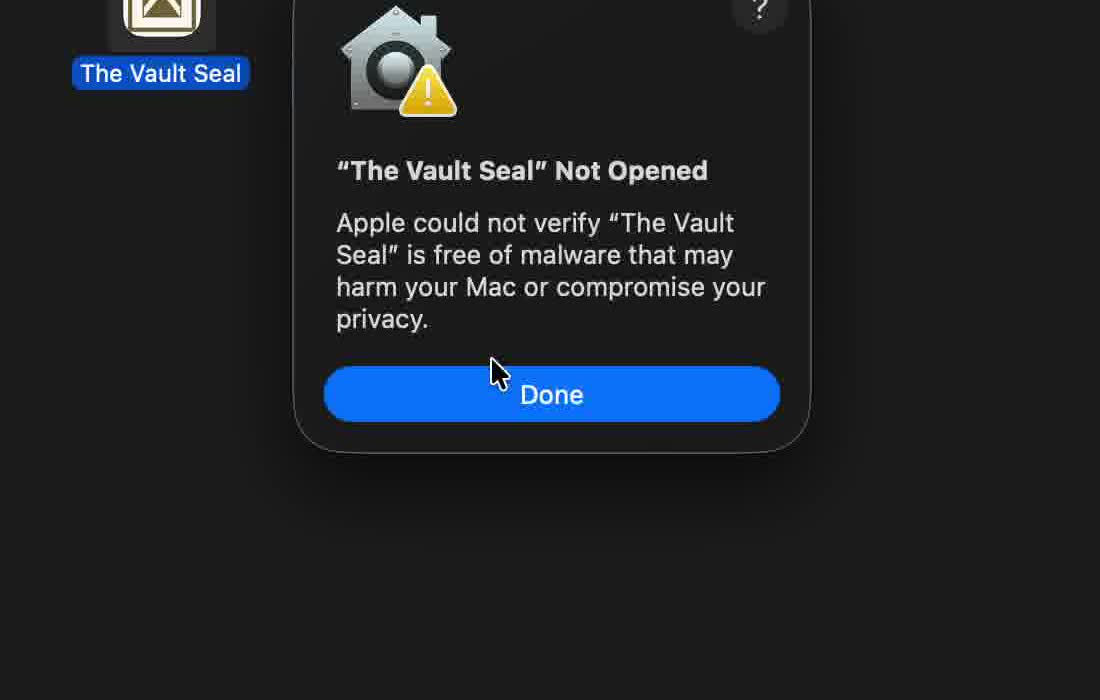
Blocked dialog — click Done
Open System Settings → Privacy & Security
Apple menu → System Settings. In the left sidebar, click Privacy & Security (shield icon). You may need to scroll the sidebar to find it.
Scroll all the way down to Security
In the right-hand panel, scroll past the long list of privacy categories until you reach the Security section at the bottom. Look for: “The Vault Seal” was blocked to protect your Mac.
Click Open Anyway
On the right of that message, click Open Anyway. Enter your Mac password or use Touch ID if asked. Then open The Vault Seal again (or confirm Open in the follow-up prompt).
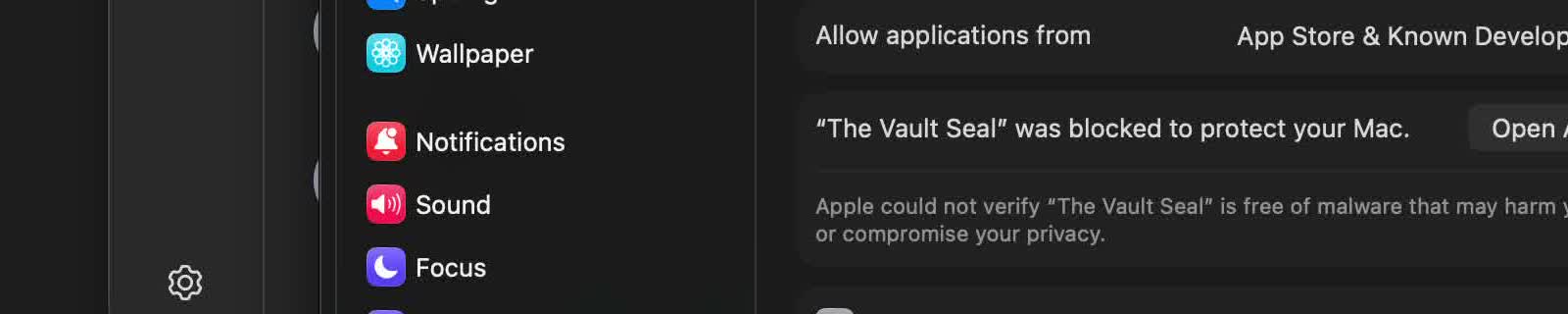
Privacy & Security → scroll to Security → Open Anyway
Still blocked?
Make sure you opened the app once first (so the blocked message appears under Security). Then return to System Settings → Privacy & Security and scroll to the bottom again.
Looking for VaultSetup Express (UTM guest)? That lives on get.vaultvm.ai — a different product and DMG.